How to Save Telegram Files to Google Drive
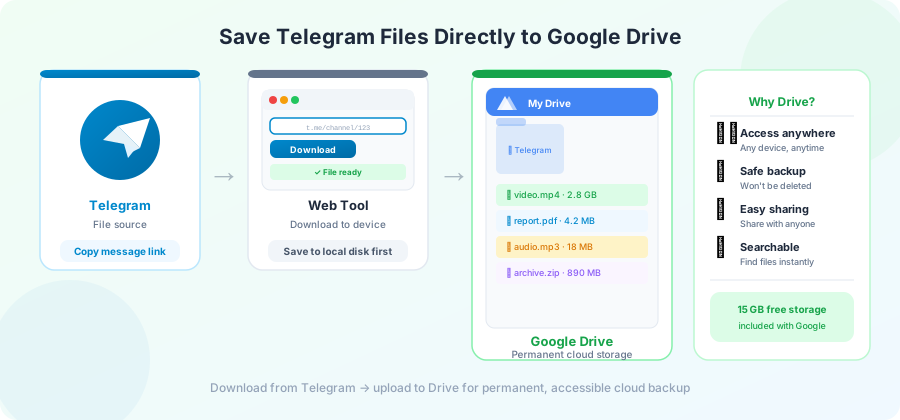
You want a Telegram file to live in your Google Drive — not on your phone, not in a Downloads folder that gets cleared, but in cloud storage where you can find it next year.
There are two practical ways to do this. One works on any phone or computer with a browser. The other is faster if you're moving a lot of files at once. Pick whichever fits your situation.
Method 1: Download, then upload (the simple way)
This is the route most people end up using because it works the same on every device.
Step 1. Open the public Telegram channel and copy the message link to the file you want.
Step 2. Open a Telegram downloader in your browser. Paste the link and download the file.
Step 3. Open Google Drive in another tab or in the Drive app.
Step 4. Drag and drop the downloaded file into Drive, or tap the + button → Upload → File and pick it.
Step 5. Wait for the upload to finish. Once it's there, you can delete the local copy if you want.
This is reliable and works for any file type and any size up to Google Drive's free 15 GB cap. If you're a Google One subscriber, the cap is higher.
On a phone: the same flow works, but switching between tabs is fussier. Doing this on a computer is easier when you have more than a few files.
Method 2: Direct upload through a connected service
A few services connect Telegram and Google Drive directly so you skip the download-then-upload step. They fetch from Telegram on their server and push to Drive on their server, so neither file ever sits on your device.
The trade-off: you have to grant the service access to your Drive account. That means giving permission to read and write files. Only use services you trust.
General flow:
- Sign in to the service with your Google account.
- Approve the Drive permission prompt.
- Paste a Telegram message link.
- Pick a Drive folder (or let it create one).
- The service does the rest.
A few things to check before signing up for any such service:
- Who runs it? A site with a real about page is better than a domain registered last week.
- What permissions does it ask for? Read-only Drive access for a file picker is fine. Full Drive access for an upload-only tool is excessive.
- Can you revoke access later? Always yes through Google's account security page. Test that you can revoke before granting permission.
Which method should you use?
If you're saving one file every few weeks, Method 1 is enough. The extra five seconds of uploading manually is nothing.
If you're archiving an entire channel of educational PDFs, or moving twenty videos at once, Method 2 saves real time — but only if you're comfortable connecting your Drive account.
A safe middle ground: use Method 1 for files you're saving for yourself, and only consider Method 2 for bulk projects.
What about file size limits?
Telegram allows files up to 4 GB. Google Drive's per-file limit is much higher (5 TB for paid plans, effectively unlimited for any Telegram file).
The real limit is your available Drive space :
- Free Google accounts get 15 GB total, shared between Drive, Gmail, and Photos.
- A few large videos can fill this quickly. Check your usage at drive.google.com/quota.
- If you're tight on space, Google One adds 100 GB for a few dollars a month.
Saving with folder structure
Google Drive lets you organize files into folders. A simple structure that works for most people:
Telegram archive/
├── Channel 1 - Course notes/
│   ├── 2025-01 - Week 1 PDF.pdf
│   └── 2025-02 - Week 2 PDF.pdf
├── Channel 2 - Software/
│   └── Installer.zip
└── Channel 3 - Videos/
    └── Tutorial.mp4
A few naming tips that pay off later:
-
Put the date first (
2025-01-15 ...) so files sort by time. - Include the channel or topic in the filename, not just the folder.
-
Avoid special characters that some apps don't like:
/,\,:,*,?.
Mobile workflow
If you mostly work from your phone, here's a cleaner flow than tab-swapping.
On iPhone:
- Use Safari to download from the Telegram link tool. The file lands in Files → Downloads.
- Open Files, find the file, long-press → Share → Save to Files → Drive folder (if you have the Drive app installed and signed in).
Or simpler: open the Drive app, tap +, choose Upload, pick the file from Files.
On Android:
- Download the file in Chrome. It lands in Downloads.
- Open the Drive app, tap +, choose Upload, pick the file.
A small tip: Drive on Android can be set as a destination for the share menu. Once it's there, any download can go straight to Drive in two taps.
Keeping uploads private
A few quick rules for files you don't want anyone else to see:
- Drive defaults to private. Files are only visible to you unless you share them.
- Don't put files inside any folder you've already shared with someone else.
- If you give a third-party service Drive access, it can technically see anything in your Drive. Use a separate Google account for archives if this concerns you.
When uploads fail or stall
A few common causes and fixes.
- Wi-Fi drops during a big upload. Drive resumes automatically most of the time. If it doesn't, refresh the Drive page and re-drop the file.
- "Storage full" message. Either empty your Drive trash (it counts against your quota) or upgrade Google One.
- Upload speed is slow. Your upload speed is usually much lower than your download speed. A 1 GB upload can take 20+ minutes on a typical home connection.
For Telegram-side download problems (which would block this whole workflow), see our download errors guide .
Other cloud services
The same idea applies to Dropbox, OneDrive, iCloud, Mega, and pCloud:
- Download the Telegram file to your device.
- Drop it into the cloud service of your choice.
Drive happens to be the most common starting point because most people already have a Google account.
A note on backups
Google Drive is great, but it's not a backup by itself. If your account gets locked or accidentally deleted, your files go with it. For genuinely important files, keep a second copy somewhere — a USB drive, an external hard drive, or a different cloud service.
Frequently Asked Questions
Can I move a Telegram file straight to Drive without it touching my device?
Only through a connected third-party service. The download-and-upload approach always passes through your device once.
Will my Google Drive show the file with the original Telegram filename?
Yes. The downloader keeps the original name. If you'd like a different name, rename after upload.
Can I download from Telegram directly inside the Drive app?
No. Drive doesn't know how to fetch from Telegram. You need a downloader in between.
Is it safe to give a third-party tool access to my Google Drive?
It depends on the tool. Stick to services with a real track record, ask for the minimum permissions needed, and revoke access from your Google account as soon as you're done.
What's the maximum file size I can upload to Drive?
The technical limit is 5 TB per file. The real limit is your free space. Telegram files never come close to the technical limit.
Will uploaded files sync to my phone's Drive app automatically?
Yes, the Drive app shows everything in your account on every device. The file is stored once on Google's servers and streamed to whichever device opens it.
Conclusion
Saving a Telegram file to Google Drive isn't a single-step process unless you trust a third-party connector, but the two-step version takes only a minute and works for any file. For archiving anything you want to keep beyond a few weeks, this is the right home for it.
Start with the file you actually need — head to the homepage , paste your Telegram link, and upload the result to Drive when it's done.