Common Telegram Download Errors and How to Fix Them
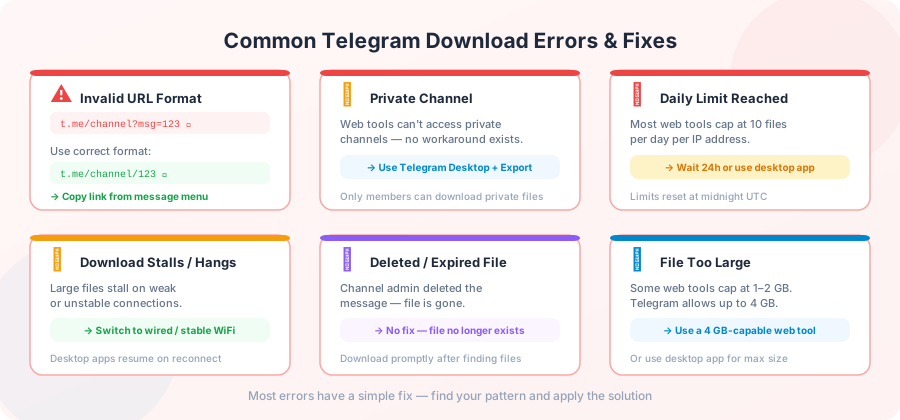
Most Telegram download problems fall into a small number of patterns. Once you know the pattern, the fix usually takes less than a minute. This page is a quick reference — find your problem in the list and skip straight to it.
The problems are sorted by where they come from: the link, the file, the website, or your own internet. That's also roughly the order you'll encounter them.
Problems with the link
"Invalid Telegram URL format"
The link you pasted is not a proper Telegram link. The downloader expects something like
https://t.me/channel/12345
. Common mistakes:
-
You copied just the channel name (
t.me/somechannel) instead of a specific message. -
You copied an invite link (
t.me/joinchat/AAAA...). - The link has extra tracking added on by another app.
Fix:
Open the message in Telegram, tap and hold (or right-click), choose Copy Link, then paste the part that ends in a number. If your link has
?
or
#
in it, remove everything from that character onward.
"Please enter a public Telegram link, not a private channel link"
Your link starts with
t.me/c/...
. That is the format for private channels. It only works if your own Telegram account is already a member. No outside tool can open these without your account login, and any site that says it can is either lying or about to ask for your password.
Fix: There isn't one for the link itself. Either find the same file in a public channel, or join the channel in Telegram and download through the app.
Link works on phone but fails on computer (or the other way around)
This usually means the link has a phone-only or web-only piece in it. Telegram clients sometimes share links with a
tg://
start or a
t.me/s/...
(preview) format.
Fix: Open the channel at web.telegram.org, click the time on the message, and copy the link from your browser's address bar. That always gives you a clean link.
Problems with the file
"File not found" or "Message no longer exists"
The person who shared the file deleted the message, or the channel was removed, or Telegram took it down. No downloader can bring back a deleted file.
Fix: Ask the person to share it again. For popular channels, an archive site might have a copy.
"File is too large"
Telegram itself only allows files up to 4 GB for Premium users and 2 GB for everyone else. Some free download sites also set their own smaller limits.
Fix: If your tool has a smaller limit than the file, find a different tool. Look for one that clearly says it supports up to 4 GB.
Download finishes but the file is broken
The size of what you saved doesn't match the size shown when you started. Two main reasons:
- The download stopped early but the browser saved the partial file anyway.
- Your antivirus was too strict and changed the file while it was downloading.
Fix: Delete the broken file. Pause your antivirus's live scanning, try again, and check the file size matches what the downloader showed. Then scan the file after it finishes, not during.
Problems with the website
"Server is currently busy"
The download site has a limit on how many people can download at the same time, and right now it's full. This isn't a bug — it's how the site protects itself from breaking.
Fix: Wait two to five minutes and try again. Most sites free up space quickly. If a site stays "busy" for an hour, it has a real problem; pick another tool.
"Too many requests"
You hit a daily or per-minute limit. Free downloaders usually allow 10 to 20 files per day from each person.
Fix: Space out your downloads. If you really need a lot of files, do them across two days.
"This file is already being downloaded by you"
You started the same download in another tab. The site is stopping a duplicate to save data.
Fix: Look at your other tabs. If you cancelled the first download but the message is still there, wait 30 seconds — most sites clear it on their own.
"Please wait X seconds"
This is a wait from Telegram itself, not from the download site. It means the Telegram account the site is using has been told to slow down for a few seconds. Most sites switch to a different account when this happens, but if every account is told to wait at once, you'll see this.
Fix: Wait out the displayed time and try again. If this keeps happening, the site is too small for its traffic. Come back later.
"Daily download limit reached"
The site only allows a certain number of files per day for free users.
Fix: Wait 24 hours from your first download of the day. If you hit this often, you might want a paid tool or your own setup.
Problems with your internet
Download stops at some percentage and won't move
Almost always your internet. The connection is alive but nothing is coming through. Try these in order:
- Make sure the tab is in front. Chrome and Safari slow down tabs that are hidden. Keep the download tab visible.
- Turn off your VPN. Free VPNs especially can drop bits of data and kill big downloads.
- Switch networks. If you're on hotel Wi-Fi, try your phone's hotspot instead, or the other way around.
- Turn off browser add-ons. Ad blockers and "speed booster" add-ons sometimes mess with downloads.
- Try a different browser. A fresh Chrome or Firefox rules out add-on and cache problems.
Download finishes but is much slower than your internet should be
Telegram sends your download from its nearest server, but "nearest" isn't always close. People in Africa, South America, and parts of Asia often see slower speeds than people in Europe.
Fix: Not much you can do. Oddly, a VPN to Europe can sometimes make Telegram faster if your usual route is bad. Try both and see which is quicker.
Download dies after about a minute, every time
You're on a network that closes long connections. Office networks, university Wi-Fi, and some home internet do this.
Fix: Try a different network if you can. If not, use a tool that supports resuming a download — most modern downloaders, ours included, can pick up where they left off when the network allows.
Browser says "Failed - Network error"
This is a generic Chrome message. It means the download was cut off before it finished. Any of the things above can cause it.
Fix: Try once more. If it fails the same way three times, switch networks or use a desktop download app like JDownloader that can resume on its own.
Problems on phones
Download finishes on iPhone but the file is nowhere
iPhones save browser downloads to the Files app, not the Photos app, even for videos. You have to open Files to see them.
Fix: Open the Files app, go to On My iPhone → Downloads. Tap and hold the video to move it to Photos if you want it in your camera roll.
Android download keeps "preparing" and never starts
Usually Chrome is stuck on a different download in the queue, or Android is asking for storage permission.
Fix: Pull down the notifications and look for a stuck download. Cancel it. Then in Chrome settings → Site Settings → Downloads, make sure the site is allowed. Try again.
Download stops when I lock my screen
Phones pause apps in the background to save battery.
Fix: Turn off battery saving for your browser while the download is running. On Android: Settings → Apps → Chrome → Battery → Unrestricted. On iPhone, you have to keep the browser open and the screen on.
Quick check: which problem do I have?
- Did pasting the link give you an error right away? → It's a link problem. Re-read our download by link guide .
- Did the link show file info, but the download won't start? → It's a website problem. Wait and try again.
- Did the download start and then stop partway? → It's an internet problem. Check your network and tab.
- Did the download finish but the file is broken or missing? → It's a file or phone problem. Check the file size and your antivirus.
When the tool itself is broken
A few signs that the site you're using is actually broken, not just having a normal off day:
- Every link, even ones that worked yesterday, fails the same way.
- The site shows a 500 error or a maintenance page.
- The download starts but moves at 0 KB/s forever.
- The error message makes no sense (like "file not found" for a file you can clearly see in Telegram).
In any of these cases, it's the site, not you. Try another tool from our list of best Telegram downloader tools , and check back later.
Frequently Asked Questions
Why does a tool that worked yesterday refuse my download today?
Telegram sometimes slows down or blocks accounts that send too many requests. A site using only one Telegram account will look broken until the block lifts. A site using many accounts can switch to a different one. From your side, both look the same: timeouts and "please wait" messages.
Can I resume a Telegram download that stopped at 80%?
In theory yes, if both your browser and the site support resuming. In practice, most browsers start over from zero after a network drop. A desktop tool like JDownloader or aria2 can properly resume from where it stopped.
Why does the same link work for some people but not me?
A few likely reasons: your country may block the Telegram server you're nearest to, your internet provider may slow down long downloads, or your VPN is on a server Telegram has limited. Try from a different network to check.
Does a broken Telegram download mean the file on Telegram is broken?
Almost never. The file on Telegram is exactly what was uploaded. A broken copy on your end means the download was cut off partway. Try again and check the file size before opening.
Why am I getting "Server is busy" on a Sunday when there shouldn't be much traffic?
Most free Telegram tools aren't built for steady traffic — they're built for what the owner can afford. A "busy" message rarely matches real busy hours; it matches how much the site can handle. It's not a bug, it's a choice.
Can I download a file that was deleted from the original channel?
No. Once a message is deleted, the file behind it is gone for everyone except people whose Telegram already saved it on their phone. No download tool can bring it back.
Conclusion
Most download problems aren't bugs — they're internet hiccups, link mistakes, or normal limits. The ones that are real bugs are usually obvious: everything fails, the site looks broken, no one is answering support.
If you've worked through your problem above and the download still won't go, try the homepage again with a fresh tab and a steady internet connection. Nine out of ten problems clear up that way.