Telegram Video to MP4 Download Guide
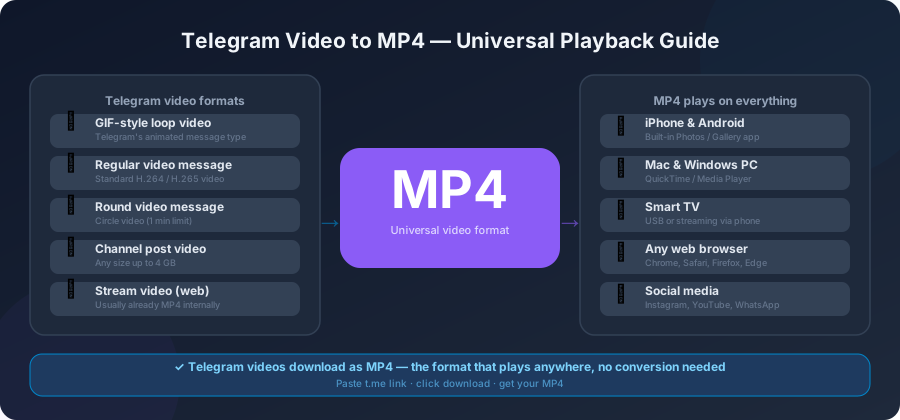
MP4 is the format that just works. Phones play it, computers play it, smart TVs play it, social media accepts it. When people search for "Telegram video to MP4," that's what they want — a downloaded file that opens anywhere without fuss.
The good news: most Telegram videos are already MP4. The bad news: sometimes they aren't, and sometimes the MP4 you get has issues. This guide covers both cases.
Quick context: what MP4 actually is
MP4 is a container format. Think of it as a box that holds video and audio inside. The box itself is MP4; what's inside can vary.
Most MP4s contain H.264 video and AAC audio. This combination plays on essentially every device made in the last decade. It's the safe default.
Some MP4s contain H.265 (also called HEVC) video. These are newer, smaller files for the same quality. They play on most modern devices but can fail on older ones.
You don't usually need to think about this. When it matters, it's because a video won't play and we'll get back to it.
What format do Telegram videos come in?
Most channels post videos as
.mp4
with H.264 video and AAC audio. These work everywhere. Download, double-click, done.
Sometimes you'll see other formats:
-
.mov— Apple's container. iPhone screen recordings often come this way. Plays in VLC and on most modern devices. -
.mkv— popular for high-quality video. Plays in VLC and in Windows' default video app. iPhones don't play MKV natively. -
.webm— web-native format. Plays in browsers and VLC but not in older video apps. -
.avi— old format. Plays in VLC. Modern phones may refuse.
If you download a Telegram video and your device won't play it, install VLC (free, on every platform) and you're set. VLC plays everything.
How to download a Telegram video
The steps are the same regardless of format.
Step 1. Open the Telegram channel in your browser, phone, or computer.
Step 2.
Tap and hold the video message → Copy Link. The link should look like
https://t.me/channel/12345
.
Step 3. Open a Telegram downloader in your browser. Paste the link.
Step 4. Click Download. The site will show you the file info — including the format — before starting the actual download.
Step 5. Save the file to your device.
If the file info shows
.mp4
, you're done. If it shows something else, see the "Converting to MP4" section below.
Streaming version vs file version
Here's a subtle thing about Telegram videos.
When someone uploads a video to a channel normally, Telegram makes a version that streams smoothly inside the app. This is what plays when you tap the video in Telegram. It's compressed, often lower-quality than the original.
The original file is also kept, but only if the poster used "Send as file" or "Send as document." If they did, the channel will have two versions of the same video:
- The streaming version — quick to play, lower quality.
- The full file version — slower to load, original quality.
When you download a streaming version, you get a compressed
.mp4
. When you download a file version, you get whatever the poster originally uploaded.
If you want the highest possible quality, look for the file/document version of the video in the channel.
Converting to MP4 if you got something else
You downloaded a video and it's
.mkv
or
.avi
or
.webm
. You want
.mp4
. Three ways to convert it.
Option 1: HandBrake (free, recommended)
HandBrake is free, works on Windows, Mac, and Linux, and produces high-quality MP4s.
- Download HandBrake from handbrake.fr.
- Open it. Drag your video into the window.
- Under "Output Settings," pick the Fast 1080p30 preset for general use.
- Set "Format" to MP4.
- Click "Start Encode."
Conversion takes time — roughly the same as the video's length, or a bit less. A 10-minute video takes about 5–10 minutes on a typical laptop.
Option 2: VLC (also free, quicker setup)
VLC has built-in conversion. Less polished output but faster to set up.
- Open VLC. Go to Media → Convert / Save.
- Add your video. Click "Convert / Save" at the bottom.
- Pick "Video - H.264 + MP3 (MP4)" as the profile.
- Choose where to save.
- Click "Start."
Option 3: Online converters (use carefully)
There are dozens of sites offering "free MP4 conversion." Some are fine, many are sketchy. A few things to check:
- Does the site have a file size limit? Many cap at 500 MB or so.
- Does it upload your file to their server? Most do, which means your file passes through someone else's hands.
- Does it add a watermark? Some free converters watermark the output.
For sensitive videos or anything large, stick with HandBrake or VLC locally.
Quality and file size
A few quick rules.
- Bigger file = better quality, usually. A 100 MB video compressed to 20 MB will look worse.
- Converting MP4 → MP4 always loses some quality. Even with the best settings, re-encoding throws away some detail. Only convert if you have to.
- Bitrate matters more than resolution. A 1080p video at low bitrate looks blurry. A 720p video at high bitrate looks sharp. HandBrake's presets handle this for you.
Specific issues and fixes
Video downloads but has no sound. The original was muted, or your player doesn't support the audio format. Try VLC.
Video plays but with green or pink artifacts. The file is corrupted, usually from an interrupted download. Re-download.
Video opens but is upside down or rotated. Some phone uploads have rotation issues. Open in HandBrake, find the Filters tab, set rotation to 0, 90, 180, or 270 degrees.
Video file is huge for its length. The original might be in a lossless or near-lossless format. Convert it in HandBrake with the standard preset to shrink it.
Phone won't play the MP4. The MP4 contains H.265 video, which older phones don't support. Convert it to H.264 in HandBrake (default option) and try again.
For other download problems, see our download errors guide .
Watching downloaded videos on different devices
Once you have an MP4, here's where it plays:
- iPhone: Photos app (after saving from Files), Apple TV app, VLC.
- Android: Gallery, Google Photos, VLC, MX Player.
- Windows: Windows Media Player, Movies & TV app, VLC.
- Mac: QuickTime, VLC.
- Smart TV: USB stick with the MP4, then plug into the TV. Most TVs play H.264 MP4 directly.
If a device refuses to play your MP4, VLC is the answer. It's free, ad-free, and on every platform.
Frequently Asked Questions
Will I lose quality if I download a Telegram video as MP4?
No, the downloader doesn't change anything. If the original was high quality, your download is high quality. Quality loss only happens if you convert later.
Can I download multiple videos at once and save them all as MP4?
Yes. Each video downloads separately. If they were all uploaded as MP4 originally (most are), no conversion is needed.
What's the difference between MP4 and a video posted "as a file"?
"As a file" means the poster sent the original video without Telegram's compression. The result is usually still MP4, just at higher quality and a bigger file size.
Why does my MP4 video have a low resolution even though it looked sharp in Telegram?
Telegram compresses videos for streaming inside the app. The version you downloaded is the streaming version. Look for a "file" or "document" copy in the channel for the original.
Is it legal to download and convert videos from public Telegram channels?
Downloading for personal use is generally fine. Whether you can share or re-upload the converted file depends on the original creator's rights.
Can I convert a Telegram video to MP4 directly on my phone?
Yes. Apps like Video Converter (Android) and Media Converter (iPhone) handle this. They're slower than a computer but work fine for short videos.
Conclusion
For most Telegram videos, MP4 is what you download and MP4 is what you keep. Conversion is only needed when the original was something else, or when you need to make a video smaller for sharing. HandBrake or VLC handle conversion locally without uploading anything to a third-party site.
Start with a public Telegram link on the homepage and see what format you get — chances are it's already MP4 and ready to play.