Telegram Video Downloader Extension for Chrome
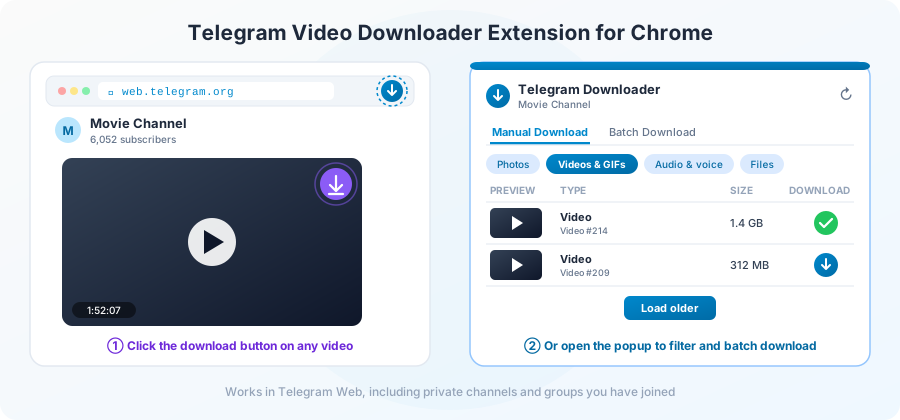
Telegram Downloader is a Chrome extension that adds a download button to videos, photos, audio and files in Telegram Web. Open a chat, click the button, and the file saves straight to your computer. No copying links, no screen recording.
This guide shows how to install the Telegram extension, how to download videos with it one at a time or in batches, and how it handles private channels and groups you have joined.
What the Telegram extension does
- One-click download button. A download icon appears on media right inside the chat, so you can save a video without leaving the conversation.
- A media list for every chat. Click the extension icon to see the chat’s files in a table, with a preview, the type and the size of each one.
- Filters by type. Show only Photos, Videos & GIFs, Audio & voice, or Files.
- Batch download. Save many files from the same chat in one go instead of clicking them one by one.
- Private chats you belong to. The extension works inside your own Telegram Web session, so it can download from private channels and groups you have joined.
- Older posts too. Press “Load older” to pull in media from further back in the chat.
How to install the Telegram Downloader extension
- Open the Telegram Downloader page in the Chrome Web Store with the “Add to Chrome” button on this page.
- Click “Add to Chrome”, then confirm with “Add extension”.
- Click the puzzle-piece icon in Chrome’s toolbar and pin Telegram Downloader, so its blue download icon is always one click away.
- Go to web.telegram.org and log in to your Telegram account, if you aren’t already.
How to download a Telegram video with the extension
The quickest way to save a single video or photo is the download button inside the chat.
- Open the channel, group or chat that has the video in Telegram Web.
- Scroll to the post. A round download button appears in the top-right corner of the video or photo.
- Click the button. The file downloads to your browser’s usual Downloads folder.
Tip: if a video doesn’t show a download button, click play once so Telegram loads it, then try again.
Download from the extension’s media list
The extension popup lists the files it finds in the open chat. It’s the easiest way to find a particular video in a busy channel.
- With the chat open, click the Telegram Downloader icon in Chrome’s toolbar.
- Stay on the “Manual Download” tab. The popup shows the chat name at the top and a table of media below.
- Pick a filter (Photos, Videos & GIFs, Audio & voice or Files) to narrow the list.
- Check the preview and size, then click the download button on that row. A green tick shows the file is done.
- Need something older? Click “Load older” to add earlier posts to the list.
Batch download: save many files at once
Want every episode of a series or every file from a course channel? Open the extension and switch to the “Batch Download” tab to download several files from the chat in one go, instead of clicking each row yourself.
Big batches take a while, so keep the Telegram Web tab open until all the downloads have finished.
Telegram private video downloader: how it works
Most online Telegram downloaders, including the one on our homepage, only work with public channel links such as t.me/channel/123. Links to private channels and groups start with t.me/c/ and can’t be opened by anyone who isn’t a member.
The extension is different because it runs inside your own logged-in Telegram Web tab. If you can open a private channel or group and watch the video there, the extension sees the same media and can save it for you. It can’t reach chats you haven’t joined.
Respect the people who shared the content: download private videos for your own use, and don’t re-upload them without permission.
Extension or website: which should you use?
| Chrome extension | Website (paste a link) | |
|---|---|---|
| Best for | Saving lots of files while you browse Telegram Web | Grabbing one file from a public link |
| Private channels and groups | Yes, the ones you have joined | No, public links only |
| Telegram login | Needed, in Telegram Web | Not needed |
| Batch download | Yes | No, one link at a time |
| Phones and tablets | No, Chrome on a computer only | Yes, any browser |
Not using Chrome right now? Paste any public post link on our homepage and download it without logging in.
Troubleshooting
- “No file detected”. Some media only appear after Telegram loads them. Play the video or click the file once in the chat, then press the refresh icon at the top of the popup to scan again.
- The download button is missing. Reload the Telegram Web tab after installing or updating the extension so it can attach to the page.
- An older post isn’t listed. Click “Load older”, or scroll up to the post in the chat and refresh the popup.
- Nothing shows in a private chat. Make sure you are logged in to web.telegram.org and can open the chat yourself.
Frequently Asked Questions
Does the extension work with the Telegram desktop app or on my phone?
No. It works with Telegram Web (web.telegram.org) in Chrome on a computer. On a phone, use our website instead: copy a public post link and paste it on the homepage.
Can I download videos from private Telegram channels?
Yes, from private channels and groups you have joined, because the extension works inside your own Telegram Web session. It can’t access chats you aren’t a member of.
Where are the downloaded files saved?
In Chrome’s default Downloads folder, the same place as any other download. You can change it in Chrome under Settings → Downloads.
Which file types can I download?
Photos, videos, GIFs, audio, voice messages and documents. Use the filters in the popup to switch between them.
Why does the popup say no file was detected?
Telegram Web only loads media once it’s on screen or played. Play or click the file once in the chat, then press the refresh icon in the popup to scan again.
Conclusion
The Telegram Downloader extension is the fastest way to save videos while you browse Telegram Web. Click the download button on a post, or open the popup to find files, filter them and download them in batches, including from private channels you have joined.
Only need one file from a public channel? Paste the link on our homepage. No login or install needed.