Download Large Telegram Files in Your Browser
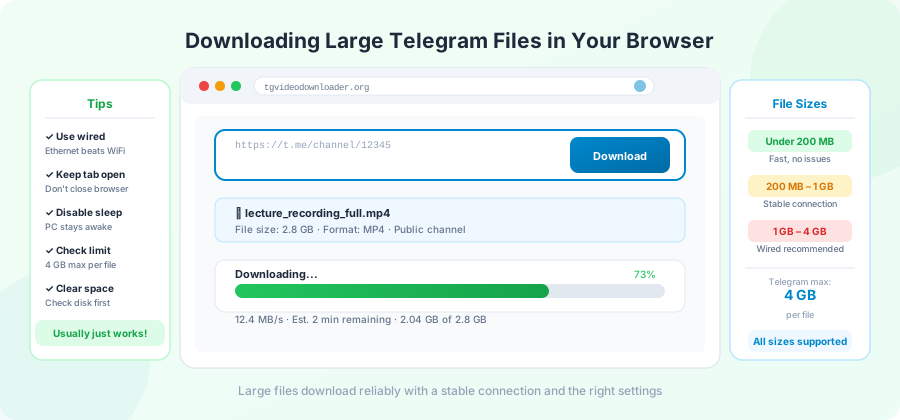
Big files are where browser downloads get fussy. A small PDF finishes before you can blink. A 3 GB video can run for ten minutes, and ten minutes is a long time for something to go wrong.
This page is about making big downloads finish — every time, without restarting from zero. It's written for files in the 1 GB to 4 GB range, which is where most real problems happen.
Why large downloads fail more often
Three reasons, in order of how often they cause trouble.
1. Your browser tab gets pushed to the background.
Modern browsers slow down or pause tabs that aren't visible. This saves your battery. It also kills long downloads. If you minimize the window or switch to a different tab for too long, the download can quietly stop receiving data.
2. Your internet has a tiny hiccup.
A small drop in your Wi-Fi signal, a router restart, a phone call interrupting a hotspot — any of these can break a connection that was fine for a small file but never recovers for a big one.
3. The download site or Telegram slows down partway through.
Some sites have hidden timeouts. Some Telegram accounts the site uses get temporarily slowed down by Telegram itself. For small files, you finish before this matters. For big files, you don't.
Before you start: the simple checklist
Most large downloads succeed if you handle these five things up front.
- Use Wi-Fi or a wired connection. Mobile data works but is more likely to drop.
- Plug in your laptop. Battery savers slow downloads when the battery is low.
- Close other downloads. Two big downloads at the same time share your speed, not double it.
- Keep the download tab visible. Don't minimize the window. Don't switch to another tab and forget about it for an hour.
- Disable VPN if you can. A VPN adds another point of failure and is often slower than direct.
During the download: what to actually do
The simplest rule: leave the tab alone . Don't refresh it. Don't open the same link in another tab. Don't pause and resume.
A few specific things to avoid:
- Don't run Windows Update or macOS updates while downloading. Restarts kill in-progress downloads.
- Don't put your laptop to sleep by closing the lid.
- Don't switch Wi-Fi networks. Each new network = new connection = restarted download.
If you need to step away, just let it run. Modern browsers handle multi-hour downloads if nothing actively interrupts them.
When a large download stalls
The classic problem: the progress bar reaches 47% and stops. You wait. It doesn't move.
Here's the order to try things in.
- Wait 60 seconds. Sometimes the download is paused on the site's side and will pick up on its own.
- Check your internet on a different page. Open a new tab and load a webpage. If that's also stuck, your internet is the problem.
- Check the tab is focused. Click on the download tab to make sure it's the active window.
- Look at the speed. If your browser shows 0 KB/s, the connection is dead. If it shows any speed, even slow, the download is alive — leave it.
- As a last resort, restart. Cancel the download, refresh the page, paste the link again. You'll start from zero, but that's better than waiting forever.
When a download manager is worth using
If you regularly grab files over 1 GB from Telegram, install a real download manager. The two most reliable free ones:
JDownloader 2 — works on Windows, Mac, and Linux. Drag and drop URLs, automatic resume on failure, supports range requests properly. The interface is dated but the engine is solid.
aria2 — command-line, advanced, very fast. Good if you're comfortable in a terminal. Can split a single download into multiple parts and grab them at once.
Both can take a direct download link from a Telegram downloader and handle the rest. If your home connection drops once every few hours, a download manager will recover where your browser would have failed.
To use one with a Telegram downloader:
- Get a direct download link from the downloader (paste your Telegram URL, get a URL back).
- Copy that URL.
- Paste it into the download manager.
- Let the download manager handle the rest.
Our piece on Telegram direct download link generators explains how to get a direct URL.
Phone-specific tips for large files
Downloading 2+ GB on a phone is harder than on a computer. A few things that genuinely help.
- Plug it in. Phones slow down background activity when the battery is below 50%.
- Set the browser to "Unrestricted" battery use. On Android: Settings → Apps → Chrome → Battery → Unrestricted. On iPhone, keep the screen on.
- Don't lock the screen. Both iOS and Android will slow a locked browser. Increase your screen timeout in Settings → Display before starting.
- Use Wi-Fi. Cellular data caps and signal drops make multi-gigabyte downloads on cellular nearly impossible.
If you have a choice, do big downloads on a computer and move the file to your phone afterward. It's faster, more reliable, and easier to recover when things go wrong.
The 4 GB limit and what's around it
Telegram's own limit is 4 GB for Premium accounts and 2 GB for everyone else. A file bigger than this can't exist on Telegram. If you see one, it's split into multiple parts, each under 4 GB.
For multi-part files (course bundles, large software archives):
- Download each part separately.
- Put all parts in the same folder.
- The split tool used to create them will be listed somewhere — usually 7-Zip or WinRAR.
- Use that tool to join the parts back into one file.
Each part is a separate download, which means each can fail independently. Do them one at a time.
What network speed do I need?
A rough guide for how long things take:
| File size | At 10 Mbps | At 50 Mbps | At 100 Mbps |
|---|---|---|---|
| 1 GB | 14 min | 3 min | 90 sec |
| 2 GB | 28 min | 6 min | 3 min |
| 4 GB | 56 min | 12 min | 6 min |
These are best-case numbers. If your actual speeds are far below these, the internet is the bottleneck. Telegram's server is usually faster than home connections.
Common errors specific to large files
- "Network changed" mid-download. Your Wi-Fi handed off between bands or your device switched between Wi-Fi and cellular. Stop, ensure the network is stable, restart.
- Download finishes but file size is wrong. A common sign of an interrupted download. Check the size the downloader showed at the start against what landed on disk. If they don't match, re-download.
- Browser shows "Failed - Insufficient permissions." Usually your antivirus or Windows Defender blocked the file. Check quarantine.
- Download speeds drop to almost nothing after a while. Your internet provider may be slowing long connections. Some providers do this. A VPN sometimes helps.
The fuller list is in our download errors guide .
Frequently Asked Questions
Can I pause and resume a large Telegram download in Chrome?
Sometimes. Chrome's resume works inconsistently for downloads from streaming sources. A desktop download manager handles this much better.
Why does a 3 GB download work on my friend's computer but not mine?
Differences in internet stability, browser version, background apps, antivirus settings, and how often the network switches. Try a download manager instead of the browser.
Does using a VPN make large downloads faster?
Sometimes. If your internet provider slows down long Telegram downloads, a VPN can route around it. If your provider is fine, a VPN adds overhead. Test both for your specific connection.
Will Telegram Premium let me download bigger files than 4 GB?
No. 4 GB is Telegram's hard upload limit for everyone, including Premium. The 2 GB limit applies only to non-Premium uploaders, but anyone can download files up to 4 GB.
Can two devices on the same Wi-Fi download the same large file at once?
Yes, but they'll share your home bandwidth, so each will be slower than if it ran alone. Do them one after the other.
What happens if my computer falls asleep during a 3 GB download?
The download stops. Some browsers reconnect when the device wakes up, but most don't and you'll have to start over. Disable sleep before starting, or use a download manager that survives sleep cycles.
Conclusion
Big downloads work fine in browsers — they just need a little patience and a few small precautions. The biggest gains come from keeping the tab in front, the internet stable, and the device awake. For really large or really important files, a desktop download manager will save you from restart-from-zero pain.
Got a big file in mind? Start it on the homepage , keep the tab visible, and let it finish.