Download Telegram Documents Without the App
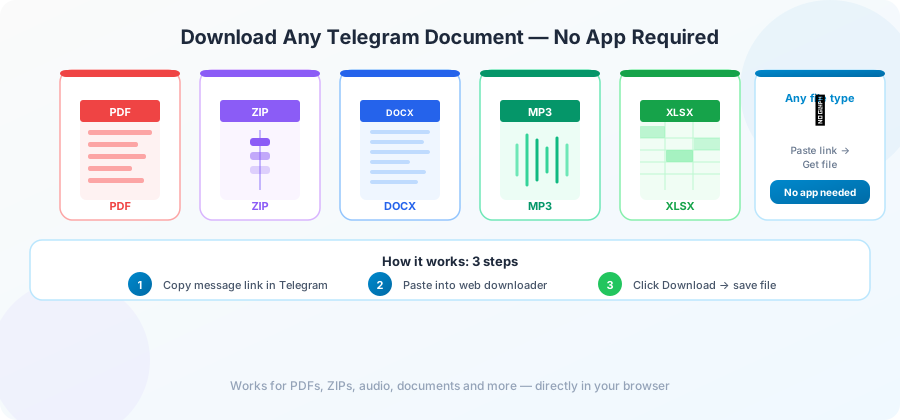
Sometimes you just need one file. A study PDF, a project ZIP, an Excel sheet shared in a work group, an audiobook in MP3 format. You don't want to install Telegram on a borrowed laptop, you don't want to create an account, and you don't want to scroll past dozens of channel posts to find the one you came for.
This guide walks through saving any kind of document from a public Telegram channel using only a web browser. Each section covers one common file type, because the small details matter.
The basic flow (read once, skip later)
For every file type, the steps are the same:
- Open the channel in your browser, app, or computer.
- Copy the link to the specific message that has the file.
- Paste the link on a Telegram downloader.
- Click Download.
- Save the file to your device.
What changes between file types is what you do after the download — which app opens the file, how to view or extract it, and what to watch for. That's what the rest of this page covers.
PDF files
The most common document on Telegram. Course notes, e-books, manuals, reports — usually shared as a single
.pdf
file.
After downloading:
- On Windows, double-click to open in Edge or any installed PDF reader.
- On Mac, double-click to open in Preview.
- On iPhone, the PDF saves to Files. Tap to open; you can also share it to the Books app for reading.
- On Android, most phones have Google PDF Viewer built in. Tap from your Downloads folder.
Watch for:
- Very large PDFs (over 100 MB) usually contain scanned pages or images. They open slowly on phones.
- Some PDFs are password-protected. The download itself succeeds, but you'll need the password to open. Ask the person who shared it.
ZIP and RAR archives
Common for software, course bundles, photo packs, and anything with multiple files.
After downloading:
- On Windows 11, right-click → Extract All. No extra software needed.
- On Mac, double-click. macOS extracts ZIPs automatically. For RAR files you'll need The Unarchiver from the App Store (free).
- On iPhone, tap the ZIP in Files. iOS extracts it into the same folder.
- On Android, use Google Files or 7zip. Tap the ZIP to see the contents, then extract.
Watch for:
- ZIPs with passwords. The download finishes normally but extraction asks for a password.
- Very large archives (over 2 GB) can take minutes to extract on phones.
-
"Self-extracting" archives end in
.exe. Don't run these unless you trust the source completely.
Word documents and other Office files
Files ending in
.docx
,
.xlsx
,
.pptx
,
.doc
,
.xls
,
.ppt
. Common for shared reports, spreadsheets, and slide decks.
After downloading:
- On Windows or Mac with Microsoft Office, just double-click.
- Without Office, upload the file to Google Drive and open with Google Docs / Sheets / Slides — free and works in any browser.
- On iPhone or Android, the free Microsoft Office app opens all formats.
Watch for:
-
Documents with macros (
.docm,.xlsm). If a document asks you to "enable content" or "enable macros" on opening, only do this if you trust the source. -
Old
.docand.xlsfiles sometimes have layout issues in newer programs.
Images (JPG, PNG, GIF, WEBP)
Photo packs, wallpaper collections, sticker exports — anything visual.
After downloading:
- Open with the default photo viewer on any device.
- On phones, move the image to your gallery: long-press in Files (iPhone) → Share → Save Image, or use Google Files on Android.
Watch for:
- Compressed Telegram images. When someone sends a photo normally in Telegram, the platform compresses it. To get the full-quality original, the person needs to send it "as a file."
- HEIC files from iPhones. Some Windows machines need a free HEIC viewer from the Microsoft Store to open them.
Audio files (MP3, M4A, FLAC, OGG, OPUS)
Music, podcasts, audiobooks, voice messages saved as files.
After downloading:
- Any music player works for MP3 and M4A. Windows Media Player, Apple Music, VLC, or your phone's default player.
- FLAC is a high-quality format. VLC plays it everywhere. iPhone needs VLC or another third-party app — Apple Music doesn't support it natively.
- OPUS is what Telegram uses for voice messages. VLC handles it. Most phones don't play it natively.
Watch for:
-
Voice messages saved as
.ogaor.ogg. Same as OPUS — use VLC. -
Audiobook chapters often come as a folder of files, not one big file. Look for
.m4bfor proper bookmarkable audiobooks.
Video files
Covered in detail in our Telegram video to MP4 download guide , but the short version: MP4 plays everywhere, MKV and MOV play in VLC.
E-book formats (EPUB, MOBI, AZW3)
For free e-book channels especially.
After downloading:
- EPUB: works in Apple Books (iPhone, Mac), Google Play Books (Android), Calibre (Windows, Mac, Linux), and most modern e-readers.
- MOBI and AZW3: Amazon Kindle formats. Email the file to your Kindle's email address, or use Calibre to convert to EPUB.
- For long-term library management, install Calibre — free, open source, and the standard for managing e-book collections.
Why "without the app" sometimes matters
A few real reasons people search for this:
- Borrowed device. You're using a friend's laptop and don't want to install an app or log in to your account.
- Storage saving. Telegram desktop is a few hundred MB. If you only need one file, that's a lot of overhead.
- Privacy. Installing Telegram leaves traces — chat history, contacts, login session. A browser download leaves only the file in your Downloads folder.
- Work computer. Many workplaces don't allow installing messaging apps, but a browser download is just a regular file download.
Speed: what to expect
Document downloads are usually fast because most documents are small.
- A 5 MB PDF: under 10 seconds
- A 50 MB ZIP: under a minute
- A 500 MB software bundle: two to four minutes
- A 2 GB course archive: eight to fifteen minutes
If your download is much slower than this, the issue is almost always your internet. For the long version, see our download errors guide .
Safety: a short checklist
Documents from public Telegram channels can be anything, including files designed to harm your computer. A few habits worth keeping:
-
Check the file extension.
A "PDF" that's actually
.pdf.exeis a virus. Show file extensions in your file manager. -
Scan executables.
Anything ending in
.exe,.msi,.bat,.scr— run it through your antivirus before opening. - Be careful with macros. Office documents asking for macro permission can run code. Decline unless you're sure of the source.
- Avoid running anything from a channel you don't trust. This sounds obvious but is the most common way people get infected.
A downloader can't protect you from the contents of the file. It just delivers what's there. The same rules apply as with any download from the wider internet.
Cloud storage for documents
If you're collecting study material, work files, or anything you want to keep forever, save it straight to cloud storage. Our guide on saving Telegram files to Google Drive covers two ways to do this.
Frequently Asked Questions
Can I download documents from a private Telegram channel without the app?
No. Private channels need a logged-in Telegram session, which a browser downloader doesn't have. You'd need to either join the channel in the Telegram app or ask a member to share the file.
Will the document be the same as the original?
Yes. A streaming downloader doesn't modify the file. What was uploaded is what you get.
What's the largest document I can download in a browser?
Up to Telegram's own limit of 4 GB. Most tools handle this, though very large downloads need a stable internet connection to avoid restarting.
Why does my Word document open with weird formatting?
Usually a font issue. The original was made with a font your computer doesn't have, so it substitutes. Install the missing font, or open the file in Google Docs which substitutes more cleanly.
Can my antivirus scan a Telegram file before it downloads?
Many antivirus tools scan after the download lands on disk. Check your antivirus settings for real-time scanning if you want files checked as they arrive.
Are downloaded documents from Telegram safe to open at work?
The file itself doesn't carry "Telegram" markers — it's just a file. But the same security rules apply: only open documents from sources you trust, and don't enable macros without knowing why.
Conclusion
Saving a document from Telegram doesn't have to mean installing anything. A browser, a link, and a downloader cover the whole flow — for PDFs, ZIPs, Office files, e-books, music, or images.
If you have a document you've been meaning to grab, the homepage is set up for exactly this. Paste, click, save.