How to Download Telegram Videos Online (Any Device)
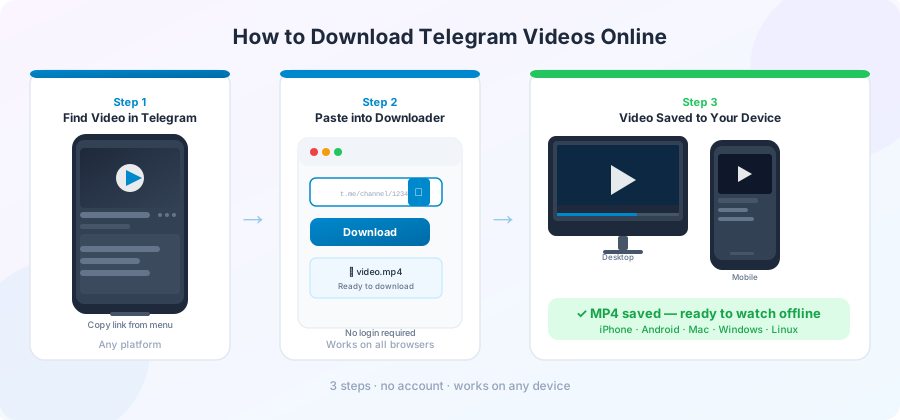
You want to save a video from a Telegram channel. Maybe it's a recipe clip, a workout demo, or a news report. You want it on your phone or computer to watch later, share, or keep. You don't want to install anything new.
This page walks you through doing exactly that — on every common device. Pick the section that matches what you're using.
What you need before you start
Three things:
- The Telegram channel must be public . If you can open it in a regular browser without joining anything, it's public.
-
You need the
link to the specific video
, not just the channel. The link should end with a number like
/4821. - You need a working internet connection. Wi-Fi is better for big videos.
That's it. No account, no app, no email.
On an iPhone
iPhones make this slightly harder than other devices because Safari has its own rules about saving files. Here's the path that works.
Step 1. Open Telegram (the app or the web version) and find the video.
Step 2. Tap and hold the video, then tap "Copy Link." If you don't see Copy Link, the channel is private and you can't download from it this way.
Step 3. Open Safari and go to a Telegram link downloader like ours.
Step 4. Paste the link into the box. Tap Download.
Step 5. Safari asks if you want to download the file. Tap Download.
Step 6. Wait for it to finish. You'll see a small arrow icon at the top right of Safari turn into a download badge.
Step 7. Open the Files app. Go to On My iPhone → Downloads. Your video is there.
Step 8. To move the video to your camera roll, tap and hold it, choose Share, then Save Video.
The most common iPhone problem: the video shows up in Files but not in Photos. That's just how iOS works — videos from the browser go to Files first.
On an Android phone
Android is more direct.
Step 1. Find the video in Telegram and copy the message link.
Step 2. Open Chrome or any browser. Go to a Telegram downloader.
Step 3. Paste the link. Tap Download.
Step 4. Chrome will save the file to your Downloads folder.
Step 5. Open your Gallery app, or the Google Files app, and look in Downloads. The video will be there.
On most Android phones the video also shows up in your main Gallery automatically after a minute or two. If not, restart your Gallery app.
One thing to watch on Android: if your phone has aggressive battery saving turned on, the download can stop when you lock your screen. The fix is in Settings → Apps → Chrome → Battery → set it to Unrestricted while the download runs.
On a Windows or Mac computer
This is the easiest setup.
Step 1. Copy the message link from Telegram (web, app, or right-click in the desktop version).
Step 2. Open your browser. Go to the downloader.
Step 3. Paste the link and click Download.
Step 4. The browser will start downloading. Most browsers save to your Downloads folder by default.
Step 5. Open the folder, find the file, double-click to play.
If you want a different save location, in Chrome go to Settings → Downloads and change the folder there.
What video format will I get?
You'll get whatever the person uploaded. Most Telegram videos are
.mp4
, which plays on every phone and computer without any extra software.
Sometimes you'll see
.mov
(common from iPhone uploads),
.mkv
(high-quality), or
.webm
(web format). These all play in VLC, in most browsers, and in modern video apps. If your phone refuses to open one of these, install VLC for free from the App Store or Play Store.
We have a longer guide on this in Telegram video to MP4 download guide .
What about HD or 4K videos?
If the original was HD or 4K, you get HD or 4K. The download tool doesn't change the quality.
Sometimes a channel shares two versions of the same video: a smaller streaming version (which plays inside the Telegram app) and a larger full-quality version (sent as a file). If you want the best quality, look for the file version — it's usually marked as a document, not a video.
How long should a download take?
A rough guide for Wi-Fi at typical home speeds:
- A 50 MB video — under 30 seconds
- A 200 MB video — about a minute
- A 1 GB video — three to five minutes
- A 4 GB video — fifteen to twenty minutes
On mobile data, expect roughly two to four times as long, depending on signal.
If your download is much slower than this, your internet is the most likely cause. Telegram's servers are usually fast.
Privacy when downloading
A clean way to think about this: never give a website your Telegram login. Not your phone number, not your password, not the special code Telegram sends. A proper link-based downloader doesn't need any of these. If a site asks, close the tab.
Beyond that, the video passes through the download site once and then to you. A good site doesn't save copies. We wrote more on this in why a Telegram downloader without login matters .
When the video won't download
Most failures fall into a few groups:
-
Wrong kind of link
— make sure the link ends in a number, not
/joinchat/or/c/. - Video too big — most tools handle up to 4 GB. Bigger than that doesn't exist on Telegram.
- Internet drop — your tab went to sleep or your Wi-Fi blinked. Try again.
- Channel deleted — if the video was removed from Telegram, no tool can get it.
The full list of fixes is in our Telegram download errors guide .
Saving videos for offline viewing
Once you've downloaded the video, it's yours to play offline. A few useful tips:
- Most phones can play videos in the lock screen — useful for podcasts or audio lectures.
- VLC can speed up or slow down videos, which is handy for tutorials.
- For long-term storage, copy your videos to Google Drive, iCloud, or a USB drive. Phones occasionally clear their Downloads folder when storage gets low.
Frequently Asked Questions
Can I download videos from private Telegram groups online?
No. Online tools can only reach public channels. Private groups need you to be a member, and the only legal way is through the Telegram app itself.
Will the downloaded video have a watermark?
No. A proper downloader gives you the exact file the person uploaded. If you see a watermark, it was on the original.
Why does my downloaded video have no sound?
Either the original was muted, or your phone's video player doesn't support the audio format. Try playing it in VLC.
Can I download a video from a Telegram story?
Stories are different from channel posts and most link-based tools don't support them. You can only save stories from inside Telegram itself.
Is there a limit on how many videos I can download per day?
Most free tools cap downloads at around 10 to 20 per day per person. This is to stop misuse, not to be annoying. Heavy users can wait 24 hours or pick a paid tool.
Do these tools work in countries where Telegram is blocked?
Sometimes yes. The download site needs to reach Telegram, not you. If the site is in a country where Telegram works, your link should download even from a country where Telegram is blocked.
Conclusion
Saving a Telegram video to your phone or computer takes about as long as copying a link and pasting it. Once you've done it once, the steps stay the same forever — the only thing that changes is the link.
If you have a video in mind, head to the homepage and try it now.